 AfterShoot
Built for the end of a shoot day
Pull the card. Know it's safe.
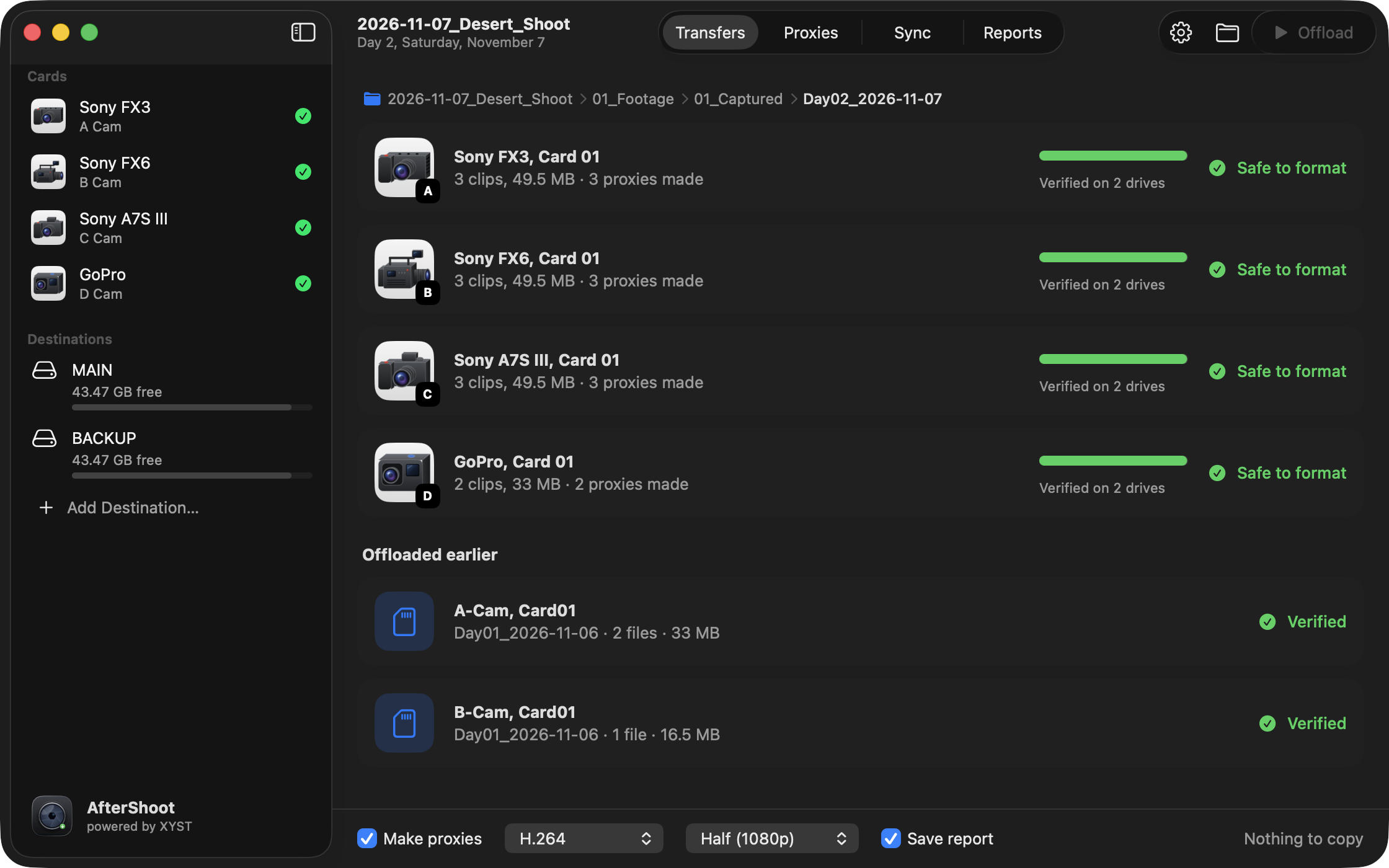
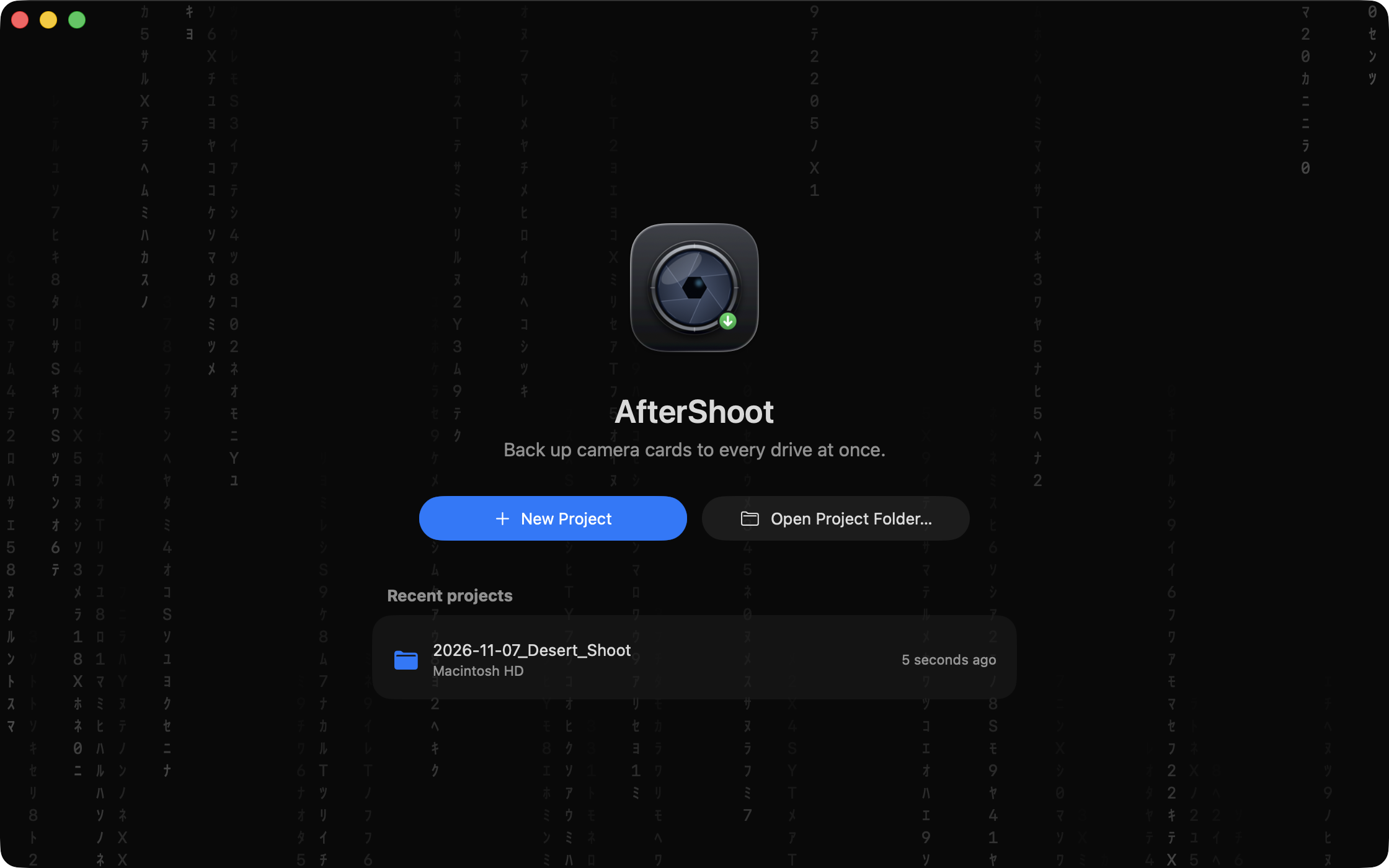
AfterShoot copies every card to all your drives, checks every file, files it where it belongs and makes proxies while you start on the next card.
Every drive at once
Each card is read once and written to your main and backup drives together, so a backup doesn't take twice as long.
Checked, not trusted
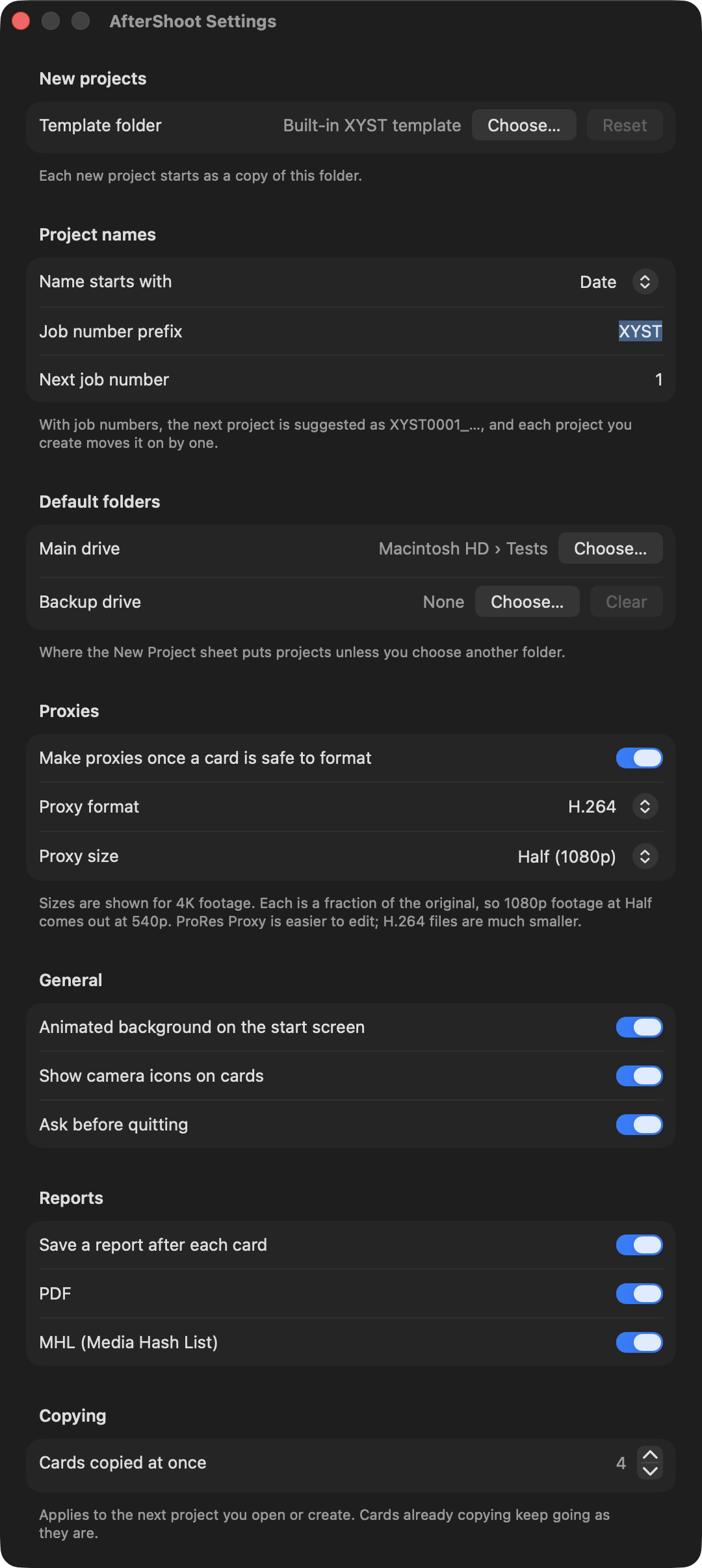
Every file is checksummed and read back from each drive before the card says Safe to format. Every card gets an MHL and a PDF report.
Picks up where it stopped
If the app quits partway through a card, put the card back in and it carries on in the same folder. Files already copied are checked, not copied again.
Proxies in the background
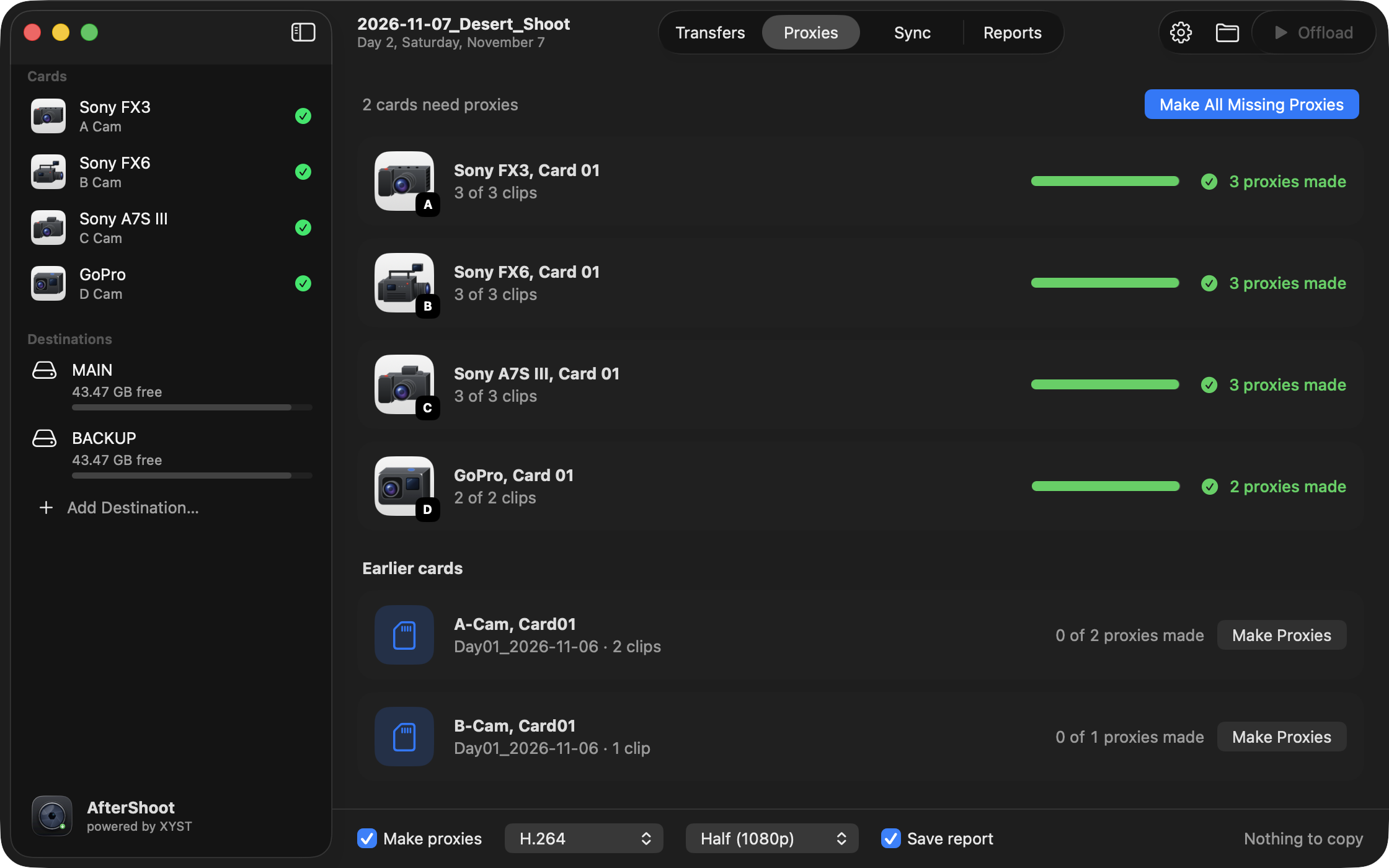
ProRes Proxy or H.264, made once a card is verified, ready for Premiere's Attach Proxies. Or make them later for the whole project.
Synced in Premiere
Each day is lined up by timecode, or by waveform when there's no timecode, into a synced timeline and a multicam sequence. Clips it couldn't sync are kept, never dropped.
Filed the way you work
Footage lands in day, camera and card folders inside your project template. Projects can be named by date or by a job number that counts up.
Knows your kit
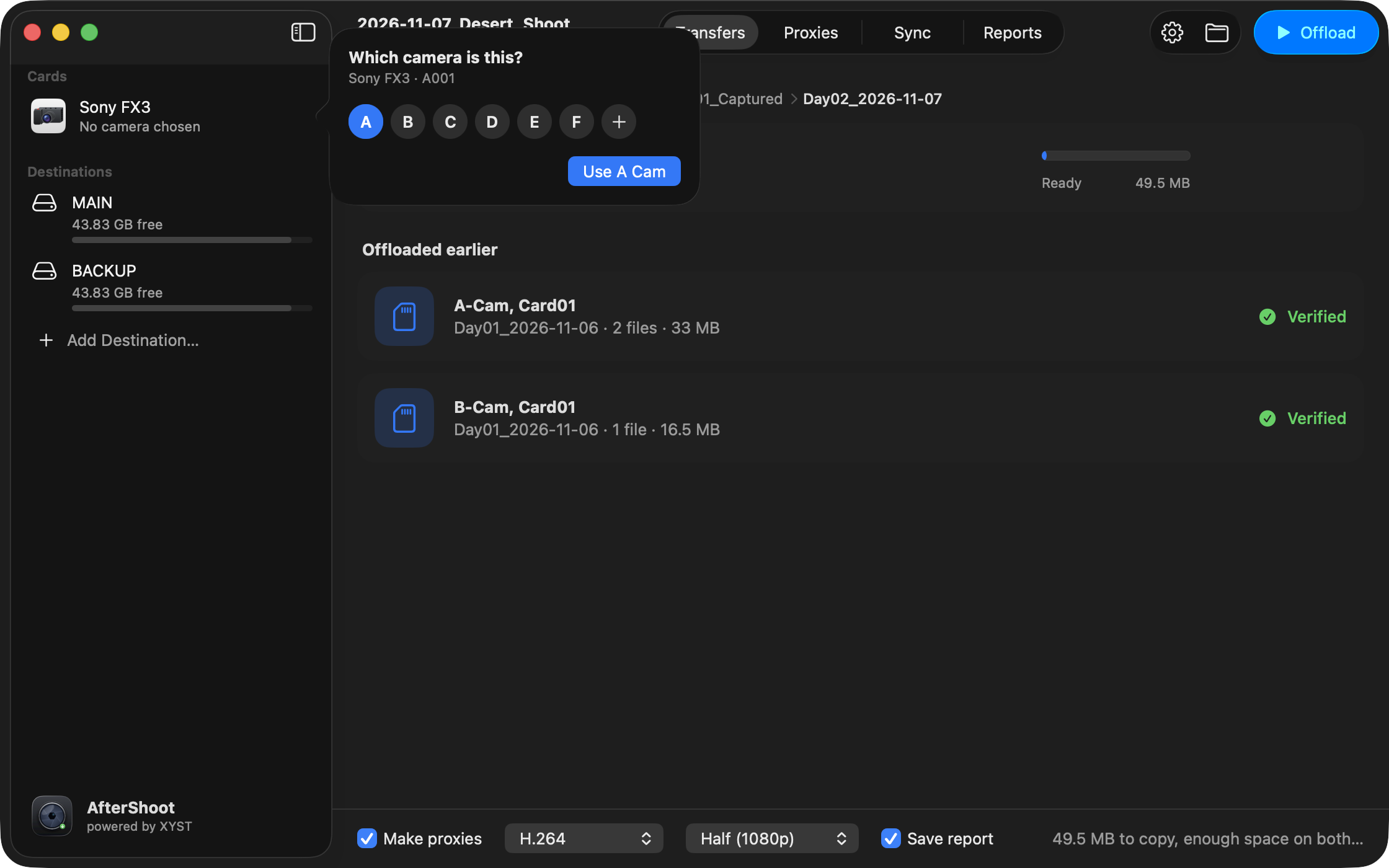
It knows which camera you shot on.
An FX3 card shows an FX3. A GoPro card shows a GoPro. There are 25 cameras, recorders and mics, and anything else gets a camera-type icon.
A closer look
Simple when you're tired.
Install
Set up in a minute.
Download and unzip
Drag AfterShoot.app into your Applications folder.
Allow it to open
AfterShoot isn't from the App Store, so macOS stops it the first time. Open it, click Done, then go to System Settings ▸ Privacy & Security and click Open Anyway.
Add the Premiere panel
For syncing, choose AfterShoot ▸ Install Premiere Panel…, restart Premiere, then open Window ▸ Extensions ▸ AfterShoot Sync.